

Message Compatibility
By default, all Send a Message blocks use the full Messages v2 system.
Customize Notifications
Choose to notify no one, everyone, or specific roles & people.
The Message Editor
In the message editor, you can drag and drop blocks from the left side onto the canvas, rearrange them, and customize them to your liking.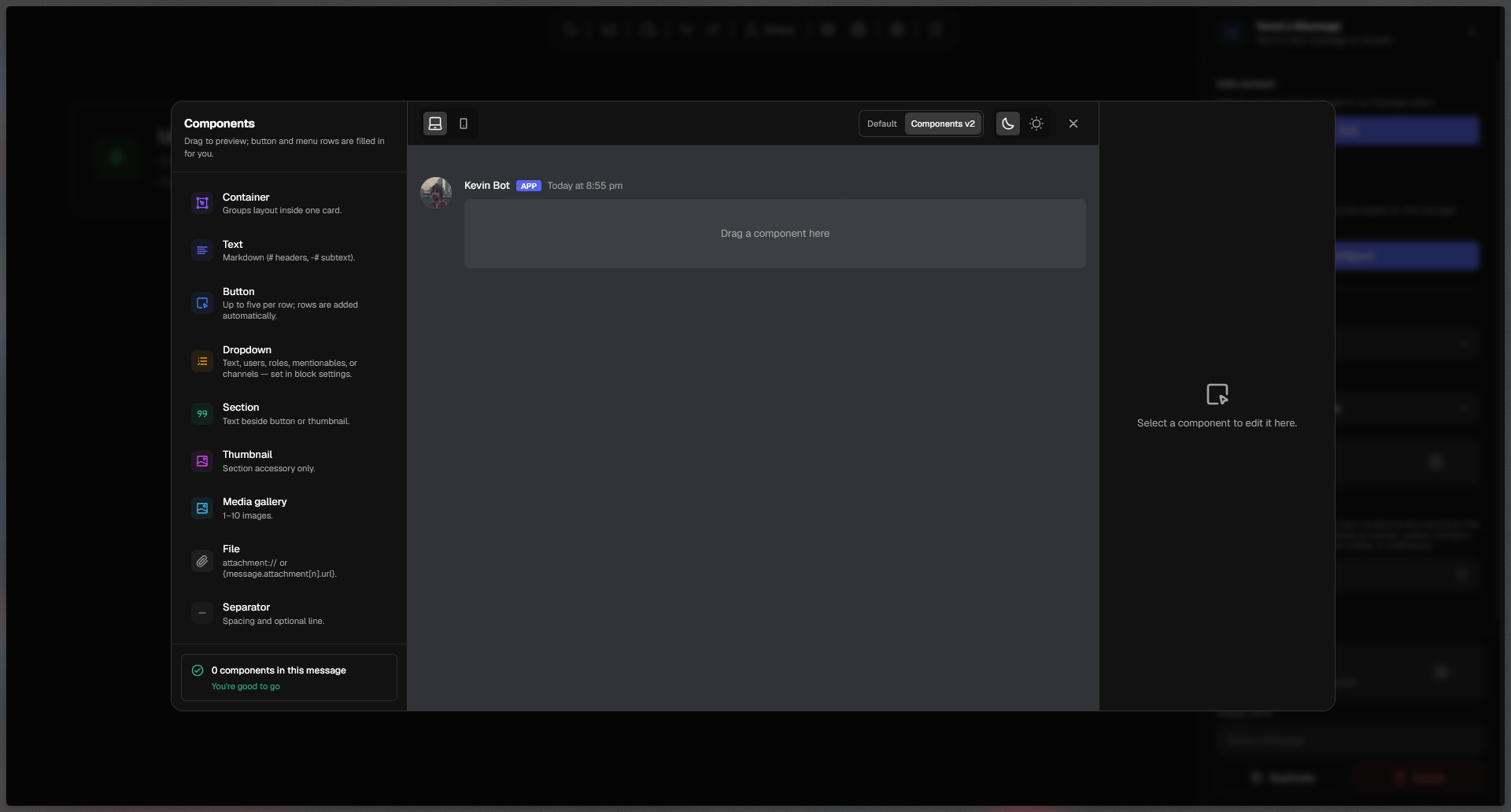
Switching to legacy (v1) messages
To switch back from Components V2, click on ”Default” in the upper right corner of the editing space.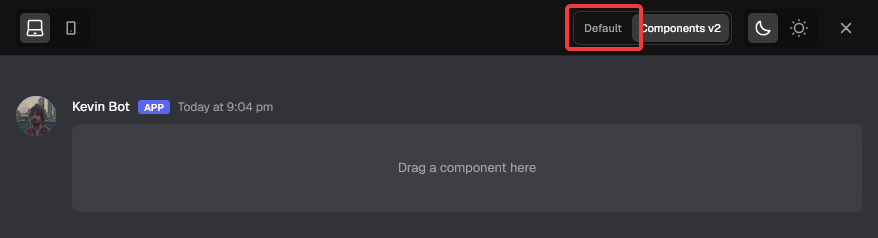
Testing your messages on different devices and themes
To save time while writing long messages, you can test out how your messages look on Mobile and PC as well as Dark mode and Light mode right in the editor, before even saving!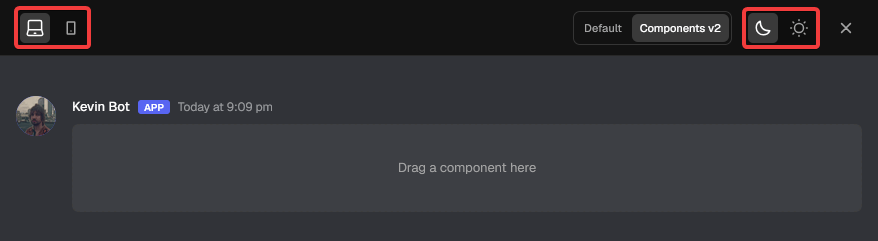
The components
Available components
Available components
Components v1
Text
Discord markdown text
Embed
Container for text with a color
Button
Interactable Discord buttons
Dropdown
Interactable Discord dropdowns
**Components v2 **Default
Container
Groups layout inside one card
Text
Discord markdown text
Button
Interactable Discord buttons
Dropdown
Interactable Discord dropdowns
Section
Text with a button or image
Thumbnail
Used to give the section an image
Media Gallery
1-10 Images shown in a grid
File
An attachment
Separator
A line to divide content
Component Behavior
Every single component can be customized and disabled. Customization options differ for each component. Disabled components still show up in your editor and can be changed, but will not be displayed in Discord once you run your flow.
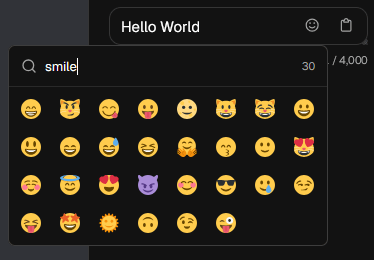
Emoji Beta
On the text, button and dropdown components, emojis can be added using an emoji selector. We’re using the same emojis for Discord for your convenience. In addition, the emoji selector is also capable of displaying your bot emojis and emojis from servers your bot is in.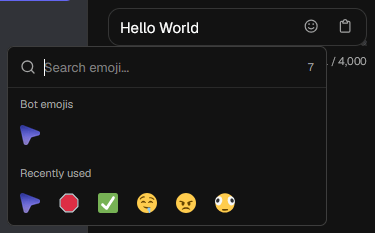
Four ways to send your message
You can choose if you want your message to be sent as a regular message, reply, edit, or as a DM (Direct Message). Each way comes with their own configuration options.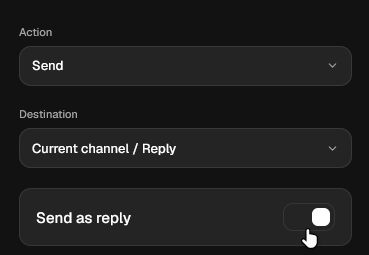
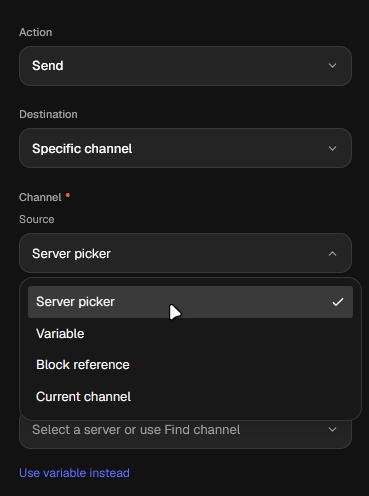
Action: Send
Select ”Send” in the Action dropdown to send your message in any channel your bot has access to, to the channel the command was used in (or event was triggered in) or as a reply to other messages.After selecting Send in the Action dropdown, another dropdown pops up: Destination:If you choose Current channel / Reply, you will see a Send as reply toggle, which when toggled sends your current message as a reply to the triggering message by default, if not toggled, your message will just be sent normally to the current channel.If you choose Specific channel, you can choose the source from four available options:Action: Direct Message
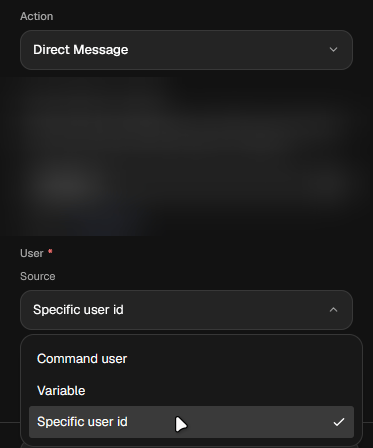
In the same Action dropdown, select ”Direct Message” to send the message any applicable user’s private messages as the bot.After selecting Direct Message in the main Action dropdown, a new Source dropdown appears, allowing you to additionally choose if you want to send the Direct Message to:
Notifications
On Meridian, notifications your messages trigger can be fully customized to your desire.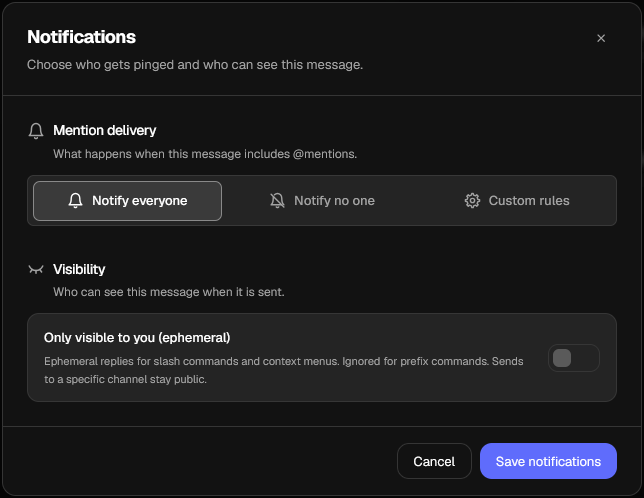
Mention Delivery
Using this setting, you can customize allowed mentions for your message. By default, this is set to Notify everyone. You can also select Notify no one or Custom rule for full customization.Notify everyone
Everyone you mention gets notified
Notify no one
No one gets notified by the message
Custom rules
Customizable notifications
Custom Mention delivery
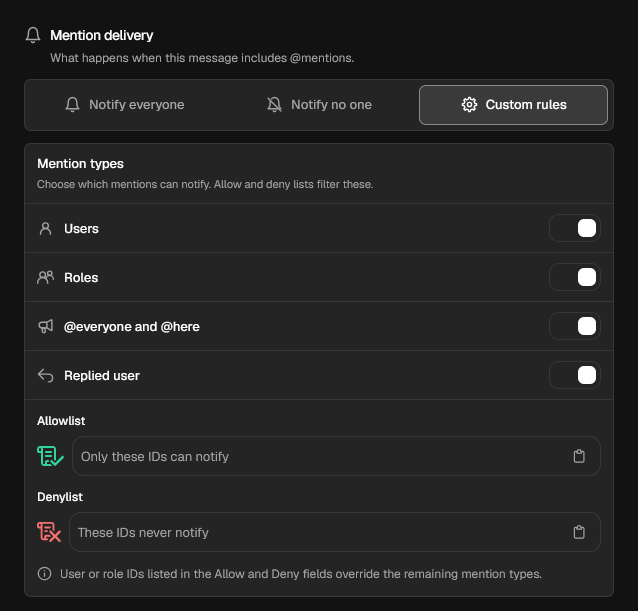
TIP: You can hold Shift + Left mouse button and drag your mouse over the options to toggle them together.
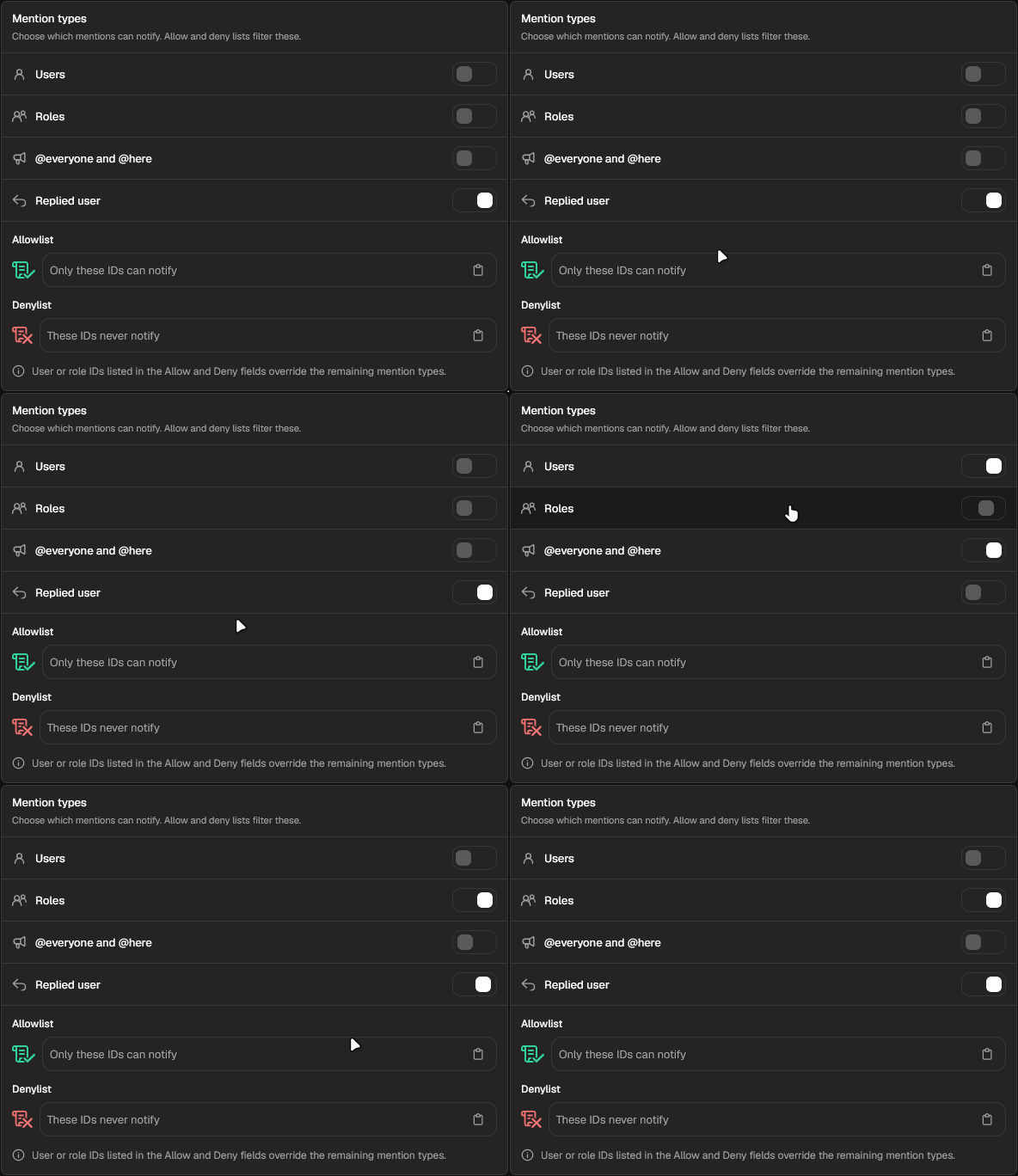
See GIF
See GIF
Hover over each setting to read more about what it does.
Variables produced by the Send a Message block
The Send a Message block produces a single{message} or {message_n} (where n is the serial number of the Send a Message block, ex. 2). When called, the variable returns the Discord message ID corresponding to the block’s configured message after it’s sent.
By default, the single
{message} variable is always populated by the Send a Message block connected to the Error Handler block.The
{message} variable shouldn’t be confused with the {interaction.message.content} variable which returns the content of the triggering message (if applicable) for events.{message} variable can be customized to be custom text inside {curly brackets}.
Buttons
Buttons can be created, edited, rearranged and deleted in the Send a Message block’s message editor.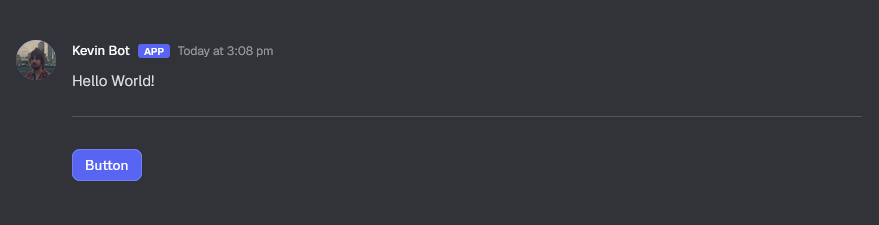
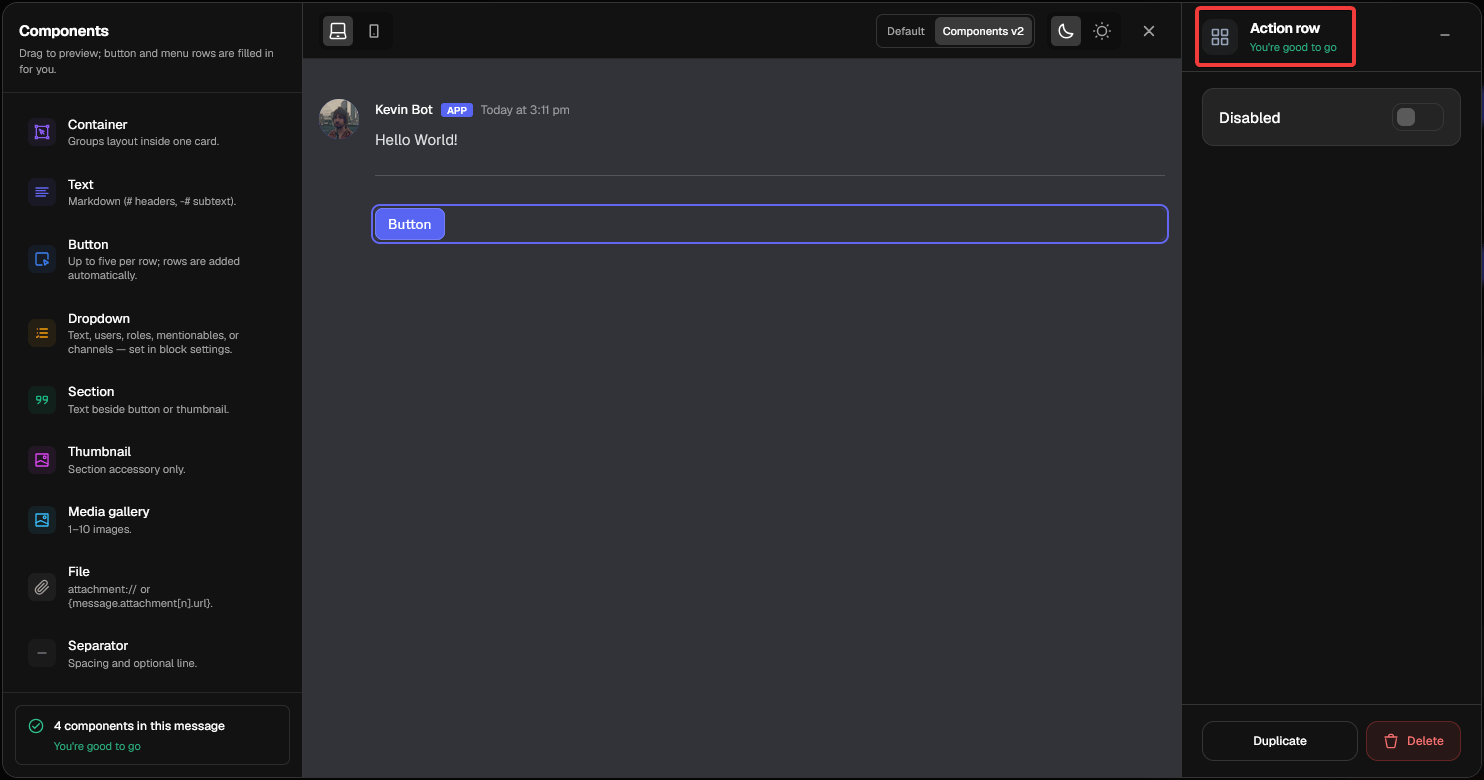
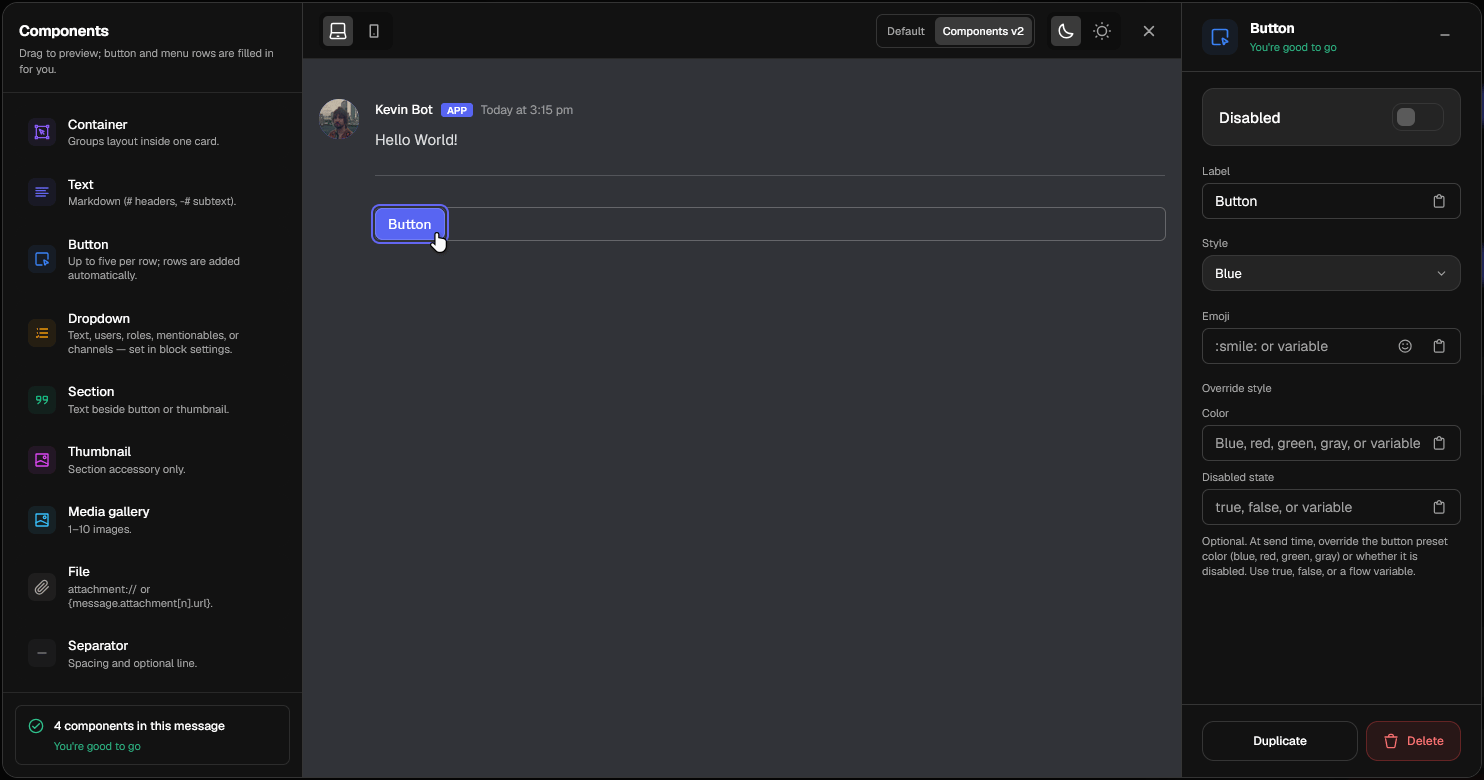
In addition, Overrides can be added by using variables. If an override is invalid, the button will automatically fallback to the manual inputs you set.
Override styles override all manual settings.
Blue
#5865F2
Gray
#232426
Green
#008545
Red
#D22D39
Link (Gray)
#232426
In Meridian: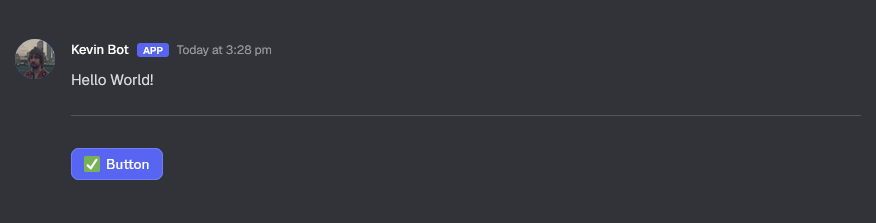

sudg--9612.png?fit=max&auto=format&n=2Yf2FVPqmBmd-PU6&q=85&s=79c586aac9903e69158292779a1d3611)
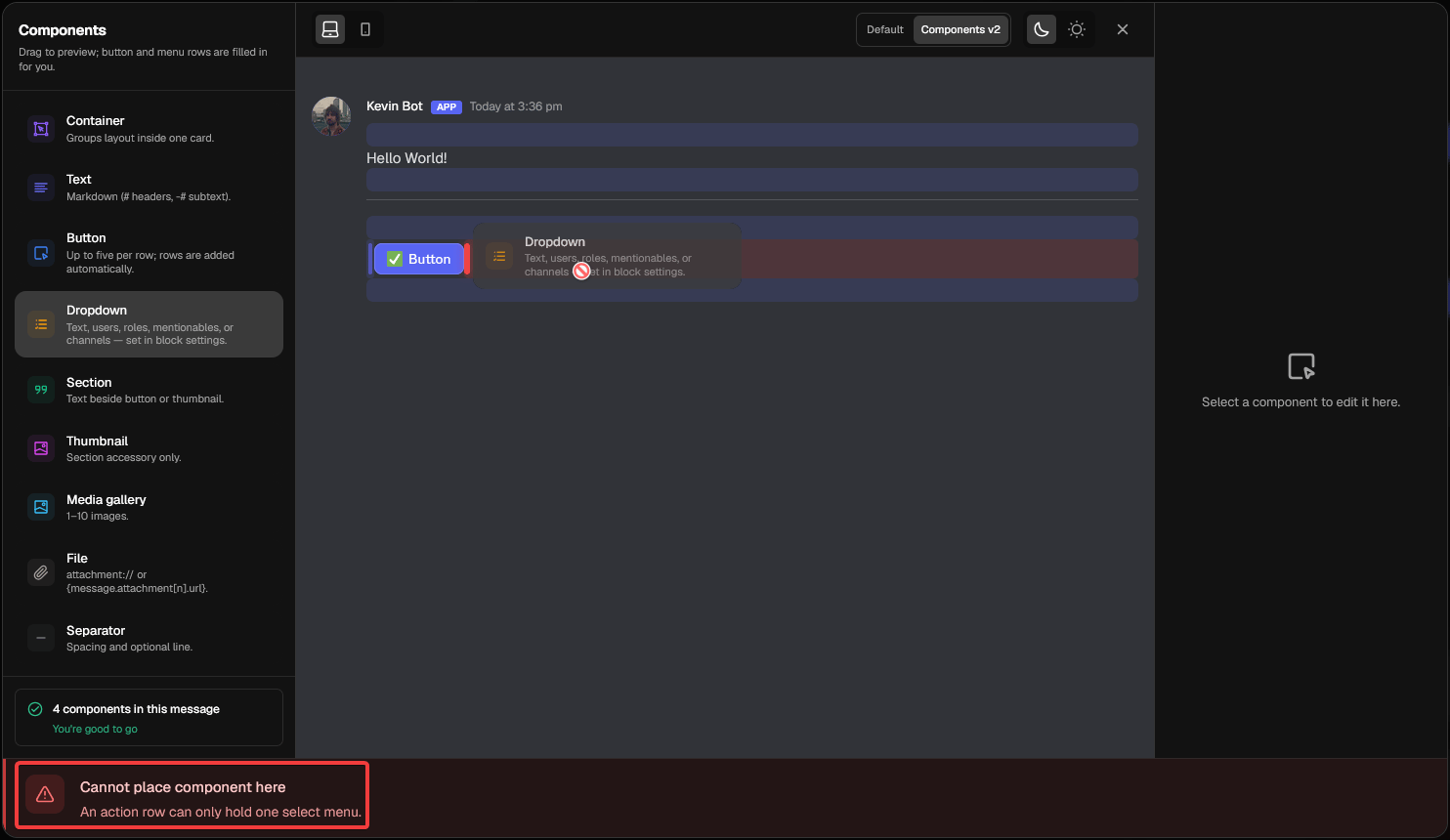
When attempting to place a component in an invalid position, you the blue area will become red and an error message will slide in from the bottom of the message editor to explain why that is an invalid position.
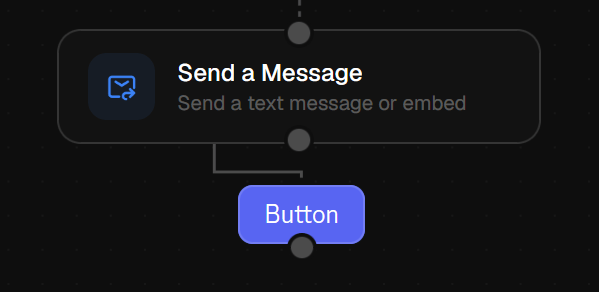
Dropdowns
Much like buttons, dropdowns can also be placed, edited, moved and deleted directly in the message editor.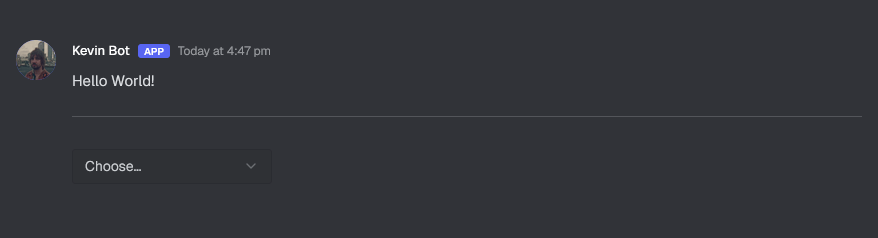
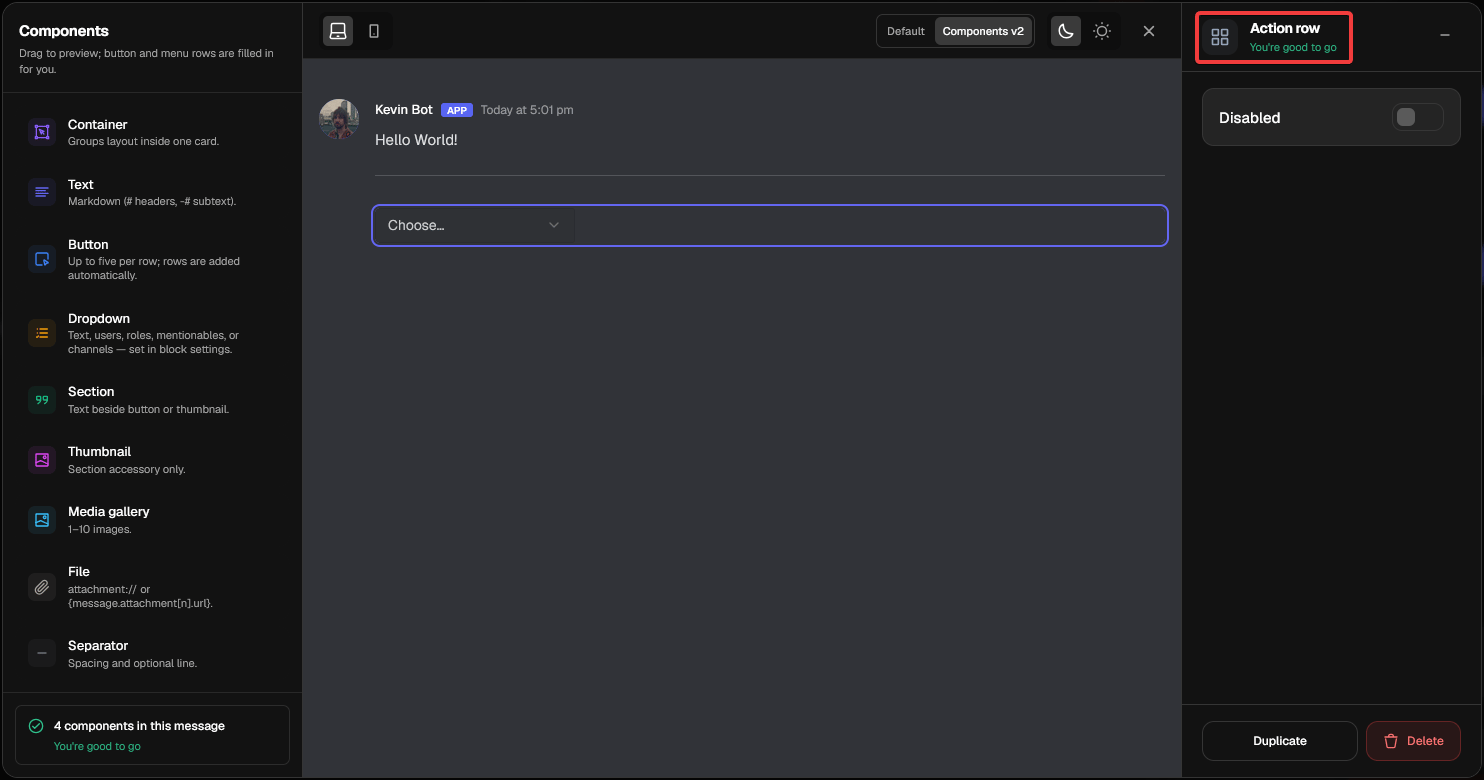
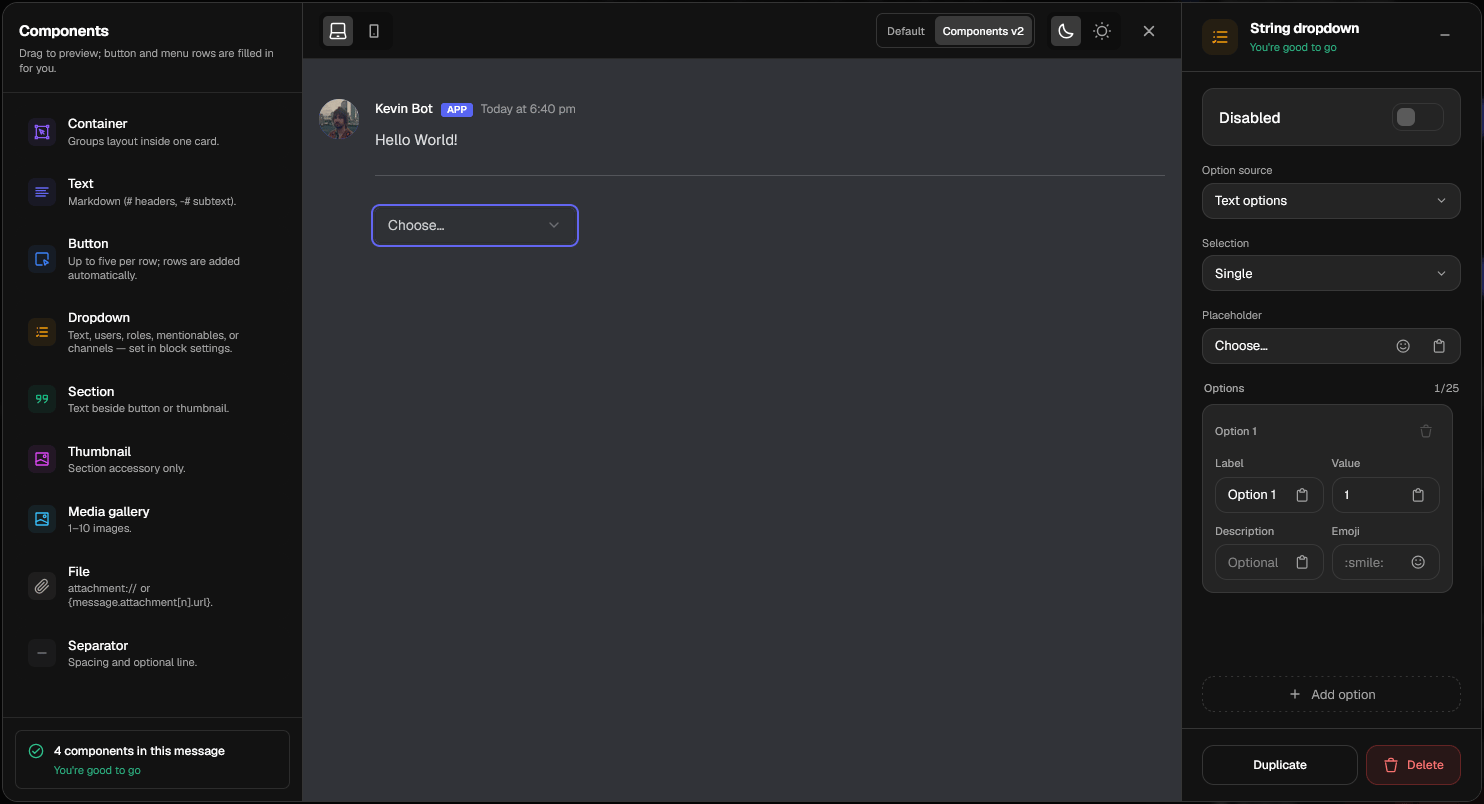
- Option source
- Selection
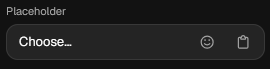
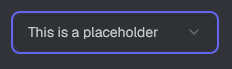
- Placeholder
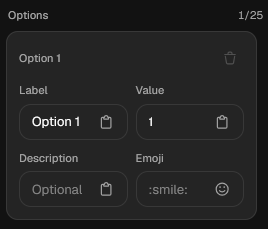
- Options
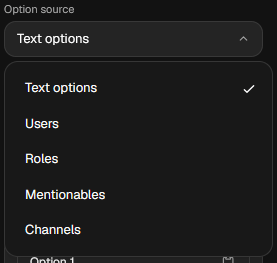
Hover over any option source in the list to the right to find out more about it.
Option Source
Using the option source dropdown, you can configure the type of options the dropdown displays in Discord. Available options: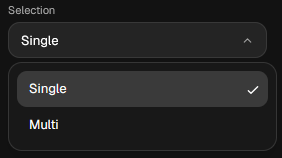
Getting user input from dropdowns
Soon