Creating a variable
To create a new variable, hit the New variable button. A menu will show to customize your new variable however you’d like.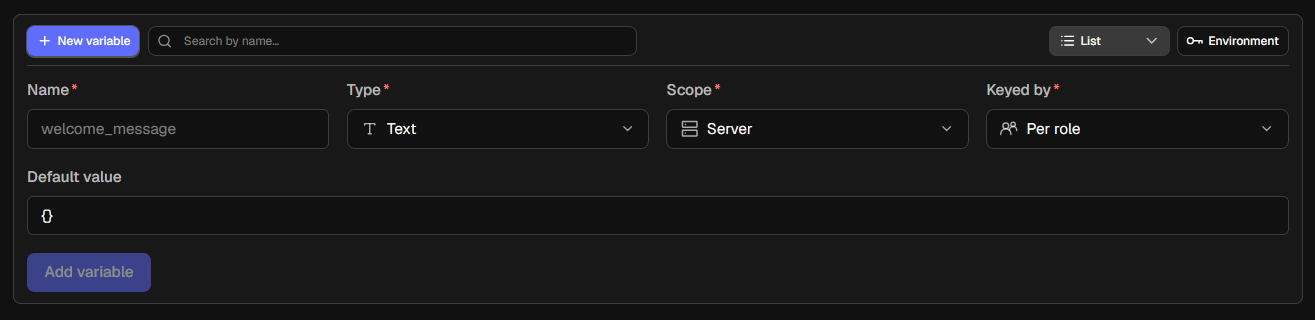
Variable types
- Text: a basic text variable. This can hold all values, including numbers. For example,
abc123!is accepted input. - Number: a basic number variable. It can hold numbers only. For example,
0.65is a perfectly acceptable input. - List: a list variable. This can hold a series of values inside the same variable. For example, a List variable can store
apples, bananas, cherriesall in one variable, and you’ll be able to pick which one you’d like to be shown based on a number you provide (e.g.{VAR_fruits.1}will returnapplesusing the example above). - Group: this variable allows holding variables with their own values inside it. With the example provided below, we can call the variable
{VAR_fruits.apple}. This will returnyummy, as that’s the value tied to the key.- Key:
applewith valueyummy - Key:
bananawith valuemeh - Key:
cherrywith valuesuper yummy
- Key:
Variable scopes
Scopes are handy for separating values between servers, especially when you’re running systems like Leveling, where you’d like to separate a user’s level, so their level isn’t in sync between two or more servers.- Use the Server scope if you’d like to separate a variable’s value between servers.
- Use the Global scope if you’d like a variable to carry over across servers and direct messages. This is handy for stuff like bot configuration or when your bot is used to connect between multiple servers.
Variable keying
Similar to scopes, variable keying is used to separate data.- Use Shared if it doesn’t matter what this variable is used for.
- Use Per user if you’d like to separate the values for each user. This is particularly handy in systems like Economy where you’d like to separate bank balances of users so not everyone has the same amount of money.
- Use Per channel if you’d like to separate values between channels. This is particularly handy for Ticket systems, where you’d like to store some information on a specific ticket only.
- Use Per role if you’d like to separate values between roles. This can be used in systems like Custom roles, where you can store the owner’s ID inside a role-specific variable.
Default value
A default value is assigned to all variables if there is no value yet. For example, you can set the default value tono in a text command that determines a user’s Premium status on your bot to make sure the user does NOT have Premium when they first use your bot. You can later overwrite this value by setting it to yes or something of your choice.
List all variables
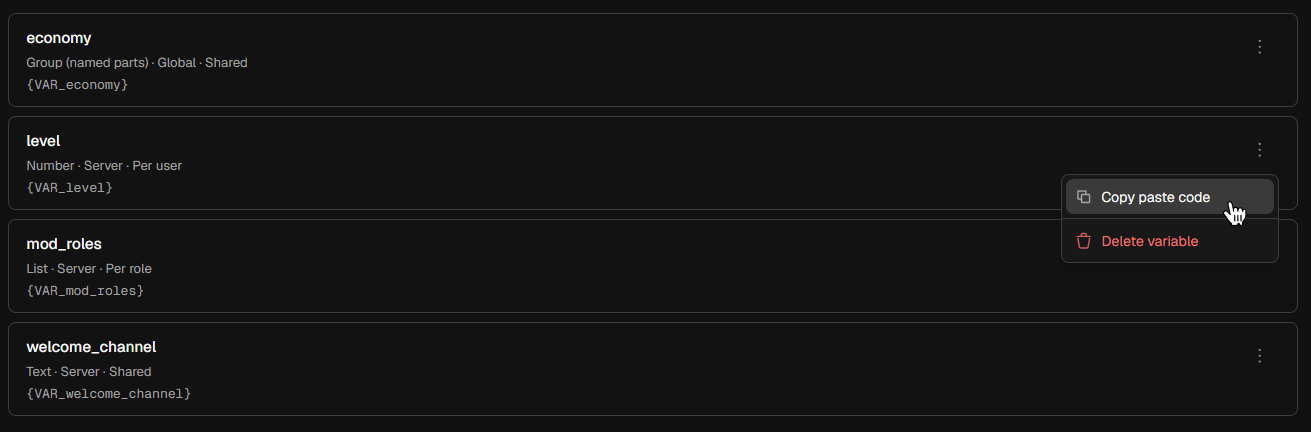
This is the default way of your bot’s variables being shown. Clicking the three dots allows you to copy a variable’s Paste code (e.g.{VAR_economy}), and clicking Delete variable will delete the variable and all its values. Don’t worry - you’ll be asked for confirmation before you accidentally delete an important variable.
Database view
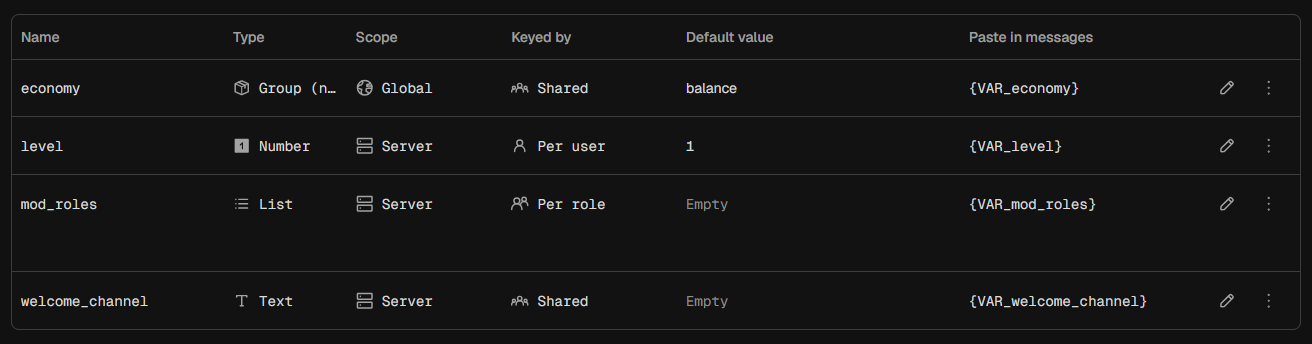
You can also show the variables as a database, with all information shown to you clearly. It includes all information, from variable Type to its Default value. Using the Pen icon, you can edit all properties of the variable. Clicking the three dots allows you to copy a variable’s Paste code (e.g.{VAR_economy}), and clicking Delete variable will delete the variable and all its values. Don’t worry - you’ll still be asked for confirmation before you accidentally delete an important variable.