

Presence
Bot presence is the small status indicator on a profile (Online, Idle, Do not Disturb, Streaming, or Invisible).- Online shows up as a fully colored green circle
- Idle shows up as a yellow moon
- Do not Disturb shows up as a no entry sign
- Streaming Hobby+ required will show up as a purple circle with a Play icon inside it. When selected, you’ll be prompted to submit a Twitch stream URL. Make sure it’s a valid Twitch URL. If you don’t have a Twitch profile or are not currently streaming, feel free to set it to
https://twitch.tv/#only. - Offline Hobby+ required will pretend your bot is offline, but your bot will still reply like normally.
Platform
This determines what platform your bot is logged in as. By default, all bots show up as Desktop, though if you’d like it to be Mobile, that’s an option too. Discord only shows the mobile icon when your bot’s Presence is set to Online.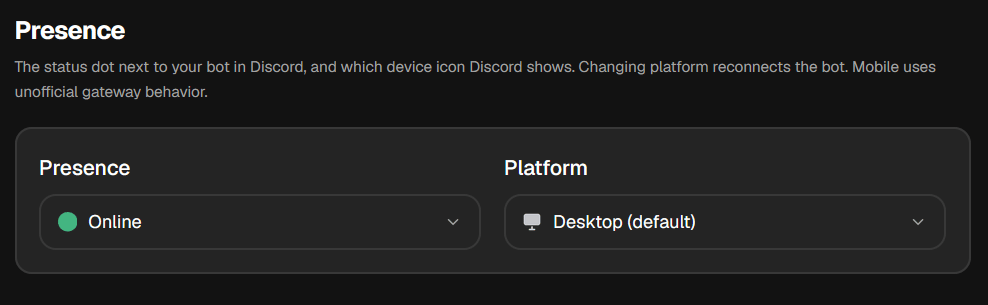
Status mode
You can set the bot’s Custom status to be a still text 24/7, or rotate the status every once in a while. You can switch out a status every 30s, 1 minute, 2 minutes, 5 minutes, or 10 minutes and can add up to 10 statuses to rotate through.- Custom status shows up like a user’s custom status does too
- Playing
- Listening to
- Watching
- Competing in
- Still activity
- Rotating status
You can add one status consisting of up to 500 characters.